CMS-Instructions Manual
Topics covered:
• Admission process and upload of documents
• Assignment of Roll No. and Doctoral Committee
• Academic Details and milestones
• Course Plan approvals
• Comprehensive Examinations
• Half yearly reports
• Scholar Documents
• Additional Documents
• Publication Details
• Reports
Enrollment to CMS (to be done by PGP Office)
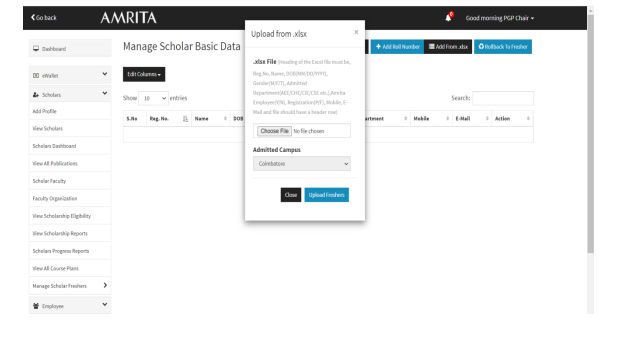
• Record of new PhD scholar can be entered in to the CMS with the below details in an excel with a header row
Reg.No, Name, DOB(MM/DD/YYYY), Gender(M/F/T), Admitted Department(AEE/CHE/CIE/CSE etc.),Amrita Employee(Y/N), Registration(P/F), Mobile, E-Mail
Navigation Path : Scholars-> Manage Scholar Freshers
Communication to new Scholars (to be done by PGP Office)
Please login to CMS and fill all the details .
Link -- https://cms.blr.amrita.edu/students/freshers/login\
Steps to login:
• Campus -- Coimbatore
• Academic Program -- Ph.D.
• User Name -- Application number mentioned in offer letter
• Password -- Date of birth(dd/mm/yyyy) Data entry of personal and academic details :
• Enter all mandatory items without which, the data cannot be saved.
• After entry of mandatory/other details, save the form before proceeding further.
• Save the form after you complete the entry of Academic Details also before proceeding to upload of documents.
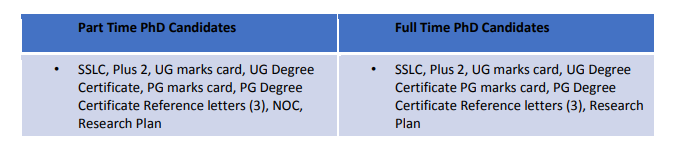
• Upload scanned copy of original certificates and color passport photograph in formal attire.
• Accept the declaration and click on "Save" if you have completed the mandatory fields. Click on "Save" if you have completed all mandatory fields, optional fields and Upload of all documents
Document Verification (to be done by PGP Office)
• Navigate to Scholar Freshers-> Scholar Profile and click on edit button
Assignment of Roll No. & Doctoral Committee (to be done by PGP Office)
Roll No. assignment:
• Go to View Scholars-> Enter the name of the scholar-> Click on the Edit button
• Enter the Roll No. and click on Proceed button
DC update:
• Go to View Scholars-> Enter the name of the scholar-> Click on the Edit button -> Go to the Academic Details tab and choose the DC members -> Click on Save-> Click on submit *DC reconstitution also happens with the above steps
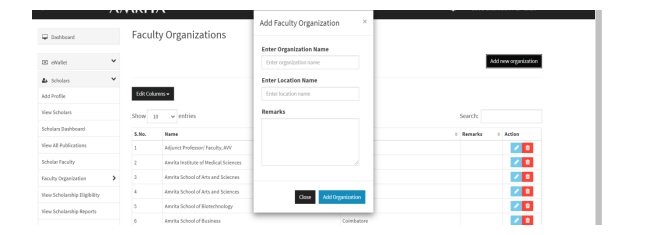
Scholar Faculty & Faculty Organization (to be done by PGP Office)
For a faculty from other organization enter the details of organization as per the below steps:
Faculty Organization-> Add new organization
Academic Details (to be done by PGP Office)
• Updated by PGP Office
• Default milestone for all scholars is course work in progress
• On Completion of milestones, the details are updated in the “Academic Details” section
Course Plan Request & Approval Process
1. Steps for the Advisor to submit a course plan
Thesis Advisor to login to CMS and navigate to the Scholar’s profile. All faculty of ASE?Coimbatore will have access to CMS
In the tab, Course Plan, click
In the pop-up window, enter the below details of planned courses for the scholar
Code: Approved Course Code has to be entered. For online courses, mention the code as “Online-<>”. Platform name means NPTEL, SWAYAM, Coursera, Edx, Udemy etc.
Title of the Course
Credits assigned to the course
Faculty offering the course
Campus: Choose this for regular courses, for other courses no selection is to be done
Academic Year
Semester
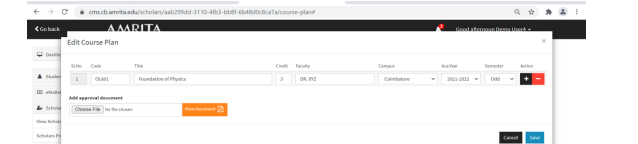
Under “Add approval document” – The Email Approvals from Doctoral Committee members (apart from Advisor) for the course plan has to be uploaded as a single pdf document.
Click  to save the plan.
Click on the button adjacent to the saved course plan
Click on the button in the pop-up window
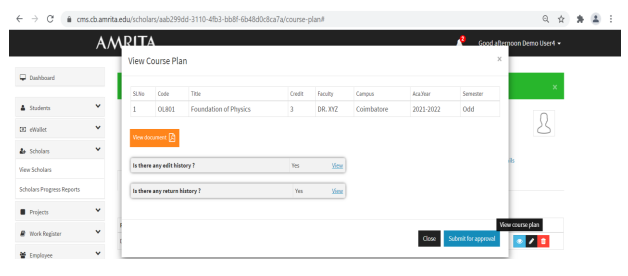
2. Approval process
After the course plan is submitted by the Thesis Advisor, an email is triggered to the PGP Chair. The Course plan will be available for the PGP Chair to view it and approve/reject it.
On approval of the course plan by the PGP Chair, e-mail intimation is sent to the Academic Coordinator’s office, DyCoE, Doctoral Committee and the scholar.
On Rejection, an email intimation will be sent to the Advisor that the plan has been returned for modification along with the comments. The return and edit history will be available for viewing for Advisor and the PGP Chair.
3. Steps for the Advisor to submit additional courses in the plan for approval or modify the plan
Thesis Advisors will have the option to edit the course plan and resubmit.
The Thesis Advisor may login to CMS and navigate to the Scholar’s profile and click on the Course Plan tab.
Click on button to edit the course plan
Add new courses or delete new courses and submit the revised plan for approval following the steps mentioned in the section 1.
4. Viewing the Course plan
• The Course plan tab is viewable by PGP Chair, DyCoE, Scholar, DC members and Academic Coordinator’s office
• The Edit access to the Course plan is given only to Thesis Advisor
5. Approved Courses Report for Office of DyCoE and Academic Coordinator’s office
• Login to CMS and Navigate to Scholars->” View All Course Plans”
• All approved courses are available in this report. An Export of this report by clicking
 will generate the data of all approved courses. The report can be filtered with the below fields.
Code
Title of the Course
Credits assigned to the course
Faculty offering the course
Campus: Choose this for regular courses, for other courses no selection is to be done
Academic Year
Semester
6. Note:
Please ensure correct course codes are entered for regular courses while submitting the plan
For regular courses, if there is no approval obtained as yet, the plan may be submitted after the approval process of the course and code assignment is complete.
Please ensure all the fields are entered accurately to avoid rejection of the course plan
Request for Comprehensive Examination (to be done by Thesis Supervisor/PGP Office)
Steps for the Advisor
1. The Thesis Advisor may login to CMS and go to the Scholar’s profile.
2. In the tab, Comprehensive Exam Requests, click on
3. In the pop up window, enter the requested Date and Time of the exam.
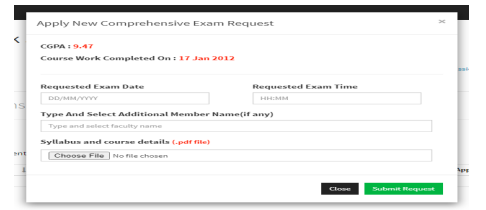
4. In the text box, “Type and Select Additional Member Name”, please mention the name of CLPGP member of your Department. If there is no CLPGP Member available, please nominate a senior faculty who is an expert in the area of research.
5. A document containing the syllabus and course details as per the format in the Annexure must be uploaded under “Syllabus and course details”.
6. Click on  to submit the request.
7. A mail will be triggered to the PGP Chair on submission for approval. After approval of the PGP Chair, the Doctoral Committee members, Additional Member, DyCoE and the scholar will be notified in separate emails about the Comprehensive Examination.
8. Please note until the Office of DyCoE marks the completion of Course Work in CMS, the Advisors will not be able to raise this request. So, please ensure the status of the scholar is “Course Work” and not “Course Work in progress” in CMS while raising this request.
Annexure- Format of Syllabus and Course Details
Topic 1:
<<Sub topics...>>
.
.
Topic 2:
<<Sub topics...>>
.
.
Topic n:
<<Sub topics...>>
.
.
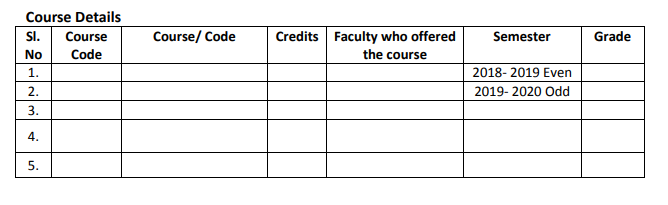
Half Yearly Progress Report Submission & Approval
Steps for Student
1. Log in to CMS with the Roll. No as the user ID and the Wifi password given to you. If you do not have a password, please click on “Having trouble logging in?” and reset the password using an OTP that will be sent to your mobile number. Scholar username is first 16 characters of roll number, and use period(.) instead of asterisk(*). Example: CB.AR.D.HUM12001
2. After login, in the left side, click on Scholars->View Scholars
3. Click on the view button to open your profile
4. Click on the tab- "Half Yearly Report Submission” and choose “Start submission process”
5. Enter the details of your report. Click on “Save” and “Submit” button to submit the report.
6. A mail will be triggered to the Doctoral committee members and Thesis Advisor for the firstlevel of approval
Steps for Doctoral Committee members other than the Thesis Advisor
1. A mail after the submission of the half yearly report by the scholar, will be triggered by CMS to all the Doctoral committee members
2. The Doctoral committee members must to login to CMS , go to Scholars->View Scholars
3. Search for the name of the scholar and click on the view button
4. Go the tab, "Half Yearly Report Submission”, review the report submitted by the scholar and approve
Steps for Thesis Advisor
1. Login to CMS
2. Go to Scholars->View Scholars
3. Search for the name of the scholar and click on the view button
4. Go the tab, "Half Yearly Report Submission”, review the report submitted by the scholar
5. The Thesis Advisor can review the details, choose if the progress is “Satisfactory” or “Unsatisfactory”
6. The Thesis Advisor will be allowed to either approve or return the report to the scholar for any corrections. The “Approve” button will be enabled for the thesis advisor, only after all the doctoral committee members review the report and approve it.
7. Thesis Advisor can “Return” any point of time after the submission by scholar and before Approval by Thesis Advisor. On approval by the Thesis Advisor, the report will be forwarded to the HOD/Chairperson for approval. This will be intimated through an email from the CMS to the HOD/Chairperson
8. Returning the report will lead to cancellation of all previous approvals and the scholar must make the necessary changes and submit the report again
9. If the faculty of the Doctoral committee is an external member, the thesis advisor must approve the request on behalf of the external member.
Steps for HOD/Chairperson
1. Login to CMS
2. Go to Scholars->View Scholars
3. Search for the name of the scholar and click on the view button
4. Go the tab, "Half Yearly Report Submission”, review the report submitted by the scholar as well the grade given by the Thesis Advisor i.e. “Satisfactory” or “Unsatisfactory”
5. The HOD/Chairperson will be allowed to either approve the report or return the report to the scholar for any corrections
6. On approval by the Thesis Advisor, the report will be forwarded to the PGP Chair for approval. This will be intimated through an email from the CMS.
7. Returning the report will lead to cancellation of all previous approvals and the scholar must make the necessary changes and submit the report again
Scholar Documents
Procedure for maintaining the Minutes of Meetings of PhD scholarsin CMS
The following guidelines are required to be followed by all the PhD scholars for maintaining the minutes of their weekly/bi-weekly or monthly meeting with Advisors and Doctoral committee members. Meeting refers to discussion over an online meeting platform or phone or face to face conversations.
1. Minutes of the meeting needs to be in email format capturing date and time stamp asshown in the example.
2. Minutes should capture only essential points and directions from the discussion
3. Email approval by the thesis advisor/DC member with whom the meeting was conducted is required to ensure that the documents being uploaded by the scholar inCMS is not different from what was discussed and agreed.
4. Minutes can be approved by just the thesis advisor or the concerned member of the doctoral committee with whom the scholar interacted.
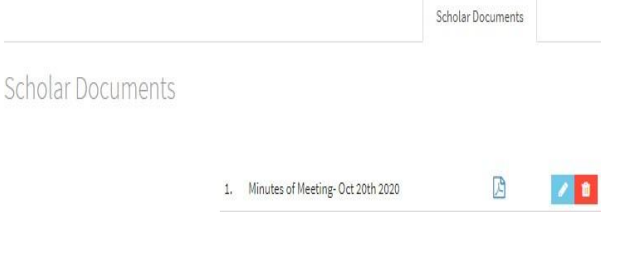
5. Approved Minutes must be uploaded in the CMS under the Scholar Documents tab as depicted below.
7. Example of Email Format of Minutes to be uploaded
From: <<Thesis Advisor/DC Member’s official email ID>>
Sent: <<Date and time stamp>>
To:<<Scholar’s Official Email ID>>
Subject:Re: Minutes of Meeting-<<Date>>
Approved /Approved with below modifications/
--<<Advisor/Member Name>>
From:<<Scholar’s Official Email ID>>
Sent :<<Date and time stamp>>
To: <<Thesis Advisor/DC Member’s email ID>>
Subject: Minutes of Meeting-<<Date>>Dear
Sir/Madam,
Please find the minutes of the meeting below. Requesting you to kindly approve the same.
Date of meeting:
Time of meeting:
Attendees:
Minutes:
1.
2
3
Actions:
1.
2.
3
Regards,
<<Scholar Name<>
<<Roll No.>>
Additional Documents
• All documents maintained in the file of the scholar is stored here
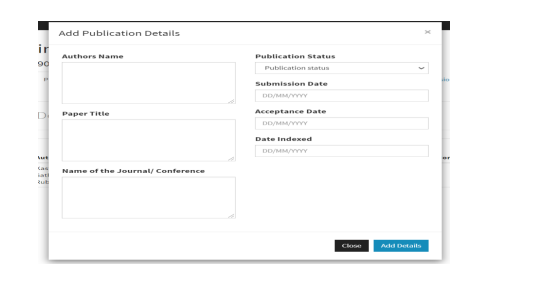
Publication Details
• Scholars have only Edit option
• Delete option to be provided to the PGP Chair’s office
Reports
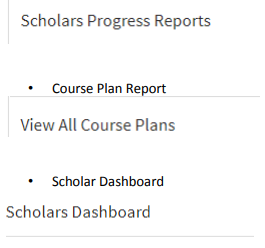
• Scholar Progress Report